Best AI Video Editors for Non-Technical Content Creators
Match your starting material to the right tool category, not just the fastest option.

The best AI video editor for a non-technical creator is the one built for the work at hand. This guide divides the 2026 landscape by what each kind of tool automates, so you can choose around your starting material, your production bottleneck, and the decisions you want to keep.
Why non-technical creators keep choosing the wrong AI video tool
Feature lists make very different products look interchangeable. A tool that clips interviews, a tool that animates a presenter, and a tool that builds videos from text can all promise faster production. But speed only matters if the tool does the job you need. A long-form repurposing engine does not solve a software walkthrough, and a full-pipeline generator is overkill for clipping a webinar.
That mismatch costs time and leads to abandoned trials. It can also produce the false conclusion that AI video does not work for a team when the actual problem is the category it chose. It helps to compare tools that take the same starting material and do the same work for you. Before comparing them, answer the question of what your actual workflow is.
How the 2026 AI video tool landscape actually divides
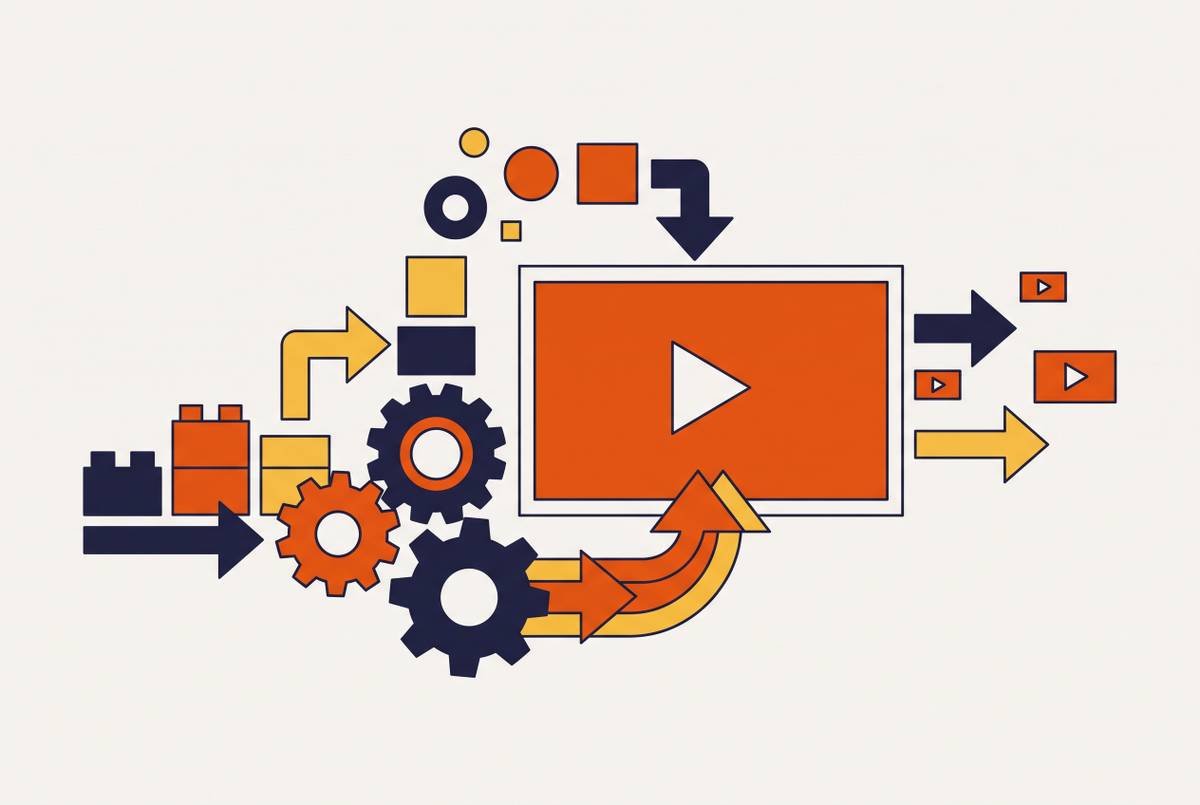
The market divides into five useful categories, defined by the work each one takes off your hands. Script-to-video and text-based editors turn written material into a draft with matched footage, captions, and voiceover, or make editing work like revising a document. Avatar and presenter-style generators use a script to create a synthetic presenter with lip-sync, gestures, and multilingual output, without a camera or studio. Long-form repurposing tools turn existing recordings into short vertical clips by automating selection, reframing, and captions.
Screen-capture and software walkthrough tools turn raw screen recordings into polished product videos and step-by-step documentation through script cleanup, voiceover, zoom, and captions. Full-pipeline automation takes a natural-language brief through scripting, footage selection, editing, transitions, music, and export with little human intervention. These categories describe different starting points.
Script-to-video and text-based editing: best for marketers and educators who write more than they film
Digital agency Leadsagna reported that its budget went further, its content reached more people, and it saw an SEO impact after using Pictory's script-to-video to make more content without a dedicated video editor. Pictory accepts a script or blog URL, matches the text to stock footage, adds captions, and layers in voiceover. It makes a captioned draft in minutes, so there is no need to put every scene together by hand.
That makes this category a direct route for marketers and educators starting with a blog post, script, or training outline. Pictory offers a 14-day free trial, and its paid tiers ship without a watermark. It also includes a video clip generator for teams that need to repurpose recordings as well as create from text.
Powtoon Imagine extends the workflow toward the writing stage. Its AI script writer creates scripts from a short prompt, then its AI video assistant organizes scenes, selects visuals, and suggests voiceovers. Text-based editing offers another important shortcut within this category, because deleting a sentence from a transcript removes the corresponding audio and footage. The editing surface is a document, which makes writing the main skill. The tradeoff follows directly from that strength, because a weak script still produces a weak video.
Avatar and presenter-style tools: best for training, onboarding, and multilingual delivery without a camera
Some written content needs a presenter. For L&D teams, customer education teams, and global organizations, the obstacle is often arranging a camera, microphone, studio, and someone to appear on screen. Avatar tools remove that studio dependency. The workflow is to write or paste a script, choose an avatar and a language, and generate a presenter video with lip-syncing, gestures, and expressions.
Localization is the strongest reason to choose this category. The same avatar script can be rendered into dozens of languages without re-recording, which makes it a different production process from dubbing existing footage. HeyGen supports presenter-style localization with voice cloning and lip-sync across a wide language range. For a team maintaining a large training library, that shifts the work from arranging repeated recordings to preparing the material that needs to be delivered.
The practical aim is to make presenter-style video available when a team could not staff or schedule one in the first place. An avatar can feel artificial, but the relevant comparison for internal training may be no video at all or a set of inconsistent screen recordings. Consistency therefore deserves a deliberate choice. Locking a content series to a specific avatar and voice helps the modules feel like one program.
Long-form repurposing tools: best for podcasters, YouTubers, and webinar teams turning one recording into many clips
For podcasters, YouTubers, and webinar teams, the recording may already be finished. The bottleneck is turning one 60-minute video into a week of platform-ready vertical clips without spending hours editing. Repurposing tools find clip-worthy moments, reframe the footage, and add captions. Unlike the previous categories, they do not begin with a script that needs to become a video.
Instructions such as “find contrarian takes” or “pull the strongest hooks” define what the tool should look for in the recording. That gives creators a way to choose passages without relying on a generic virality score. The creator supplies the editorial target, and the tool handles the search. This helps when a clip needs to serve the team's purpose more than it needs to appeal to a broad social audience.
Choppity accepts YouTube links and uploads up to 120 minutes, with a transcript-native editor for trimming by highlighting text. Its magic reframe tracks speakers with follow boxes and creates stacked split-screen layouts in 9:16 without manual cropping. Native scheduling covers TikTok, Instagram, YouTube, LinkedIn, and Facebook. Opus Clip, starting at $15/month, and Kapwing are alternatives, with Kapwing offering browser-based access without installation.
Screen-capture and software walkthrough tools: best for SaaS teams explaining products at scale
A screen recording may show the product, but it still needs to become a clear lesson for onboarding, a help center, a sales demo, or internal training. Tools in this category accept a screen capture, rewrite the script, add a lifelike voiceover, and apply smart zoom and captions. They also generate accompanying documentation, which is the defining advantage over a general-purpose video editor.
Teaching people to use software often takes both a demonstration and written steps. When those are separate jobs, the team still has to write the documentation after finishing the video. Producing both from one recording removes that split in the workflow. For SaaS teams, the relevant buying question is therefore not just how polished the video looks, but whether the tool covers the whole explanation.
Clips of a few minutes that each cover one topic work better here than one long tutorial, because fewer people finish videos that run too long. A library can cover welcome, setup, feature explanations, and troubleshooting, with videos placed inside the product, in onboarding emails, and on help center pages. A video about a feature is more useful when someone sees it as they reach that feature than when it is buried elsewhere. Tools with one-click translation extend the workflow further by producing the same walkthrough in dozens of languages without re-recording.
Full-pipeline automation: best for high-volume content that just needs to exist
You describe the topic, style, length, and platform, and the tool handles production through export. This works for large amounts of social content, programmatic ad variants, and internal communications by getting work out fast and keeping it consistent, with less room for a voice of its own. It is the most hands-off category.
The tradeoff is that the output reflects AI defaults unless the team constrains them. Consistent faces, lighting, voice, and visual style require reference images, locked seeds, and consistent avatar or voice choices across sessions. Runway supports style references from uploaded images, giving creative teams one way to guide visual identity. The practical rule is to use broad automation for content that needs to exist and be clear, while reserving human editing for work where tone, brand voice, or emotional pacing is the point.
Where human judgment stays in charge regardless of which tool category you use
AI handles repeatable tasks such as first script drafts, B-roll selection, caption generation, music scoring, voiceover, translation, and audio cleanup. Humans decide which story to tell, what the brand should sound like, and how the video should unfold. They also make the final quality call before publication. A non-technical creator can do this work without having to learn every task that goes into making a video.
Comfort with AI does not have to be uniform across that division. A creator can be happy to use automated captions and translation while keeping more control over scriptwriting and brand messaging. The goal is to hand over mechanical effort without handing over the choices that give the content its purpose.
Generative workflows make prompt writing an important part of that human role. A structured prompt names the subject, action, style, camera movement, mood, and lighting. This skill improves with practice and can be captured in a team's brand prompt guide. The operating model is to let AI do most of the production work while people direct the result.
How to match your use case to the right category in practice
If you have written content and need to put it together as a video, choose script-to-video or text-based editing. Pictory can turn your script or blog into a draft, while Powtoon Imagine can also help turn a short prompt into a script and scenes.
If you need a face to present the material but cannot set up filming, choose an avatar and presenter-style tool. HeyGen is relevant when localization is a priority. If you already have a long recording and need to turn it into short social clips, choose repurposing instead. Custom selection criteria matter when you know what kinds of moments you want extracted.
If your input is a screen recording and your output must include both a walkthrough and written instructions, choose the screen-capture category. A general text-to-video tool leaves documentation as a separate job. If you instead need large amounts of clear content and brand specificity is secondary, full-pipeline automation fits the task. That choice trades hands-on control for speed, so it belongs where that trade is acceptable.
Start with the free tier or trial of a tool in the category that matches your workflow. The first session should make the fit apparent because the input you have matches what the tool is designed to receive. Choose the tool that does the most to remove your actual bottleneck.